The control deck on the tablet you already own.
DeskTab turns an Android tablet, an iPad or an iPhone into keys, dials and a screen for your PC. One tap launches an app, switches a scene, pauses Spotify or mutes your mic. No hardware to buy, no account.
Everything you do with mouse and keyboard, in one tap.
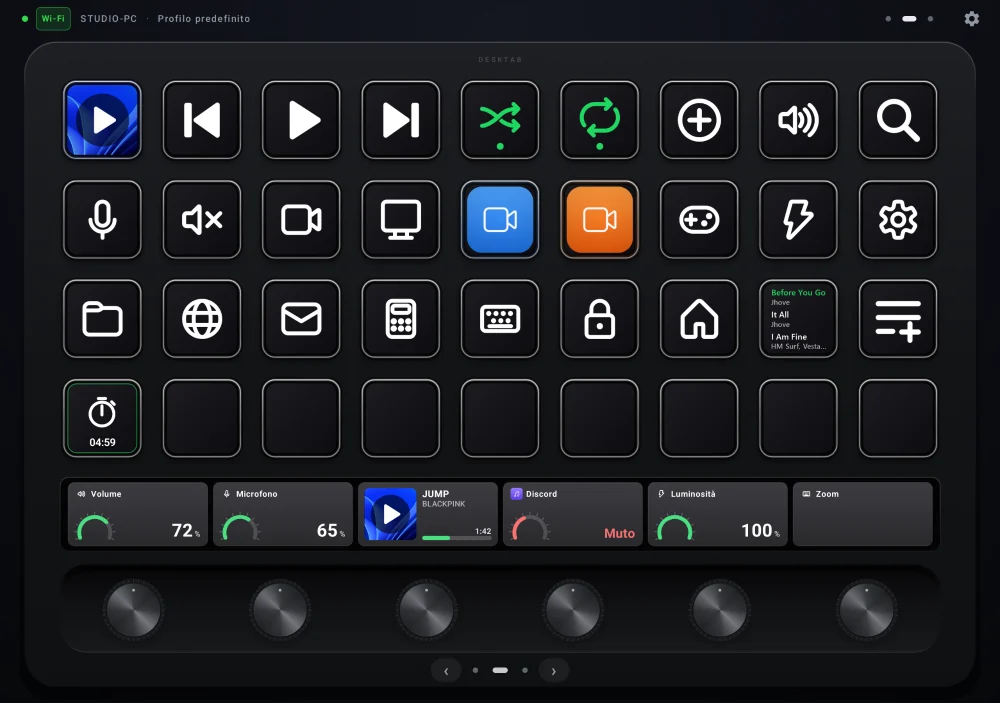
In the editor on your PC, pick an action and drag it onto a key. The tablet shows it right away, with icon, title and live images: album art, charts, meters.

Shortcuts, apps, files and websites
Key combinations, text to type, commands, media keys, locking the PC.
Sequences with delays
Several actions in a row, toggle actions, single, double or long press.
Volume, microphone and mixer
Soundboard, system and per-app volume, default output, studio meters.

Your PC inside the deck
A monitor or a single PC window in a zone of the tablet, to tap and scroll.

Folders, pages and profiles
Profiles that switch by themselves based on the app in the foreground.
Spotify, Discord, PowerPoint…
Live state on the keys: track, mute, slide, CPU and temperatures.
Bitfocus Companion surface
Companion buttons and dials on the tablet, even without DeskTab on the PC.
Three minutes from download to your first key.
Install DeskTab
Open the Windows file and answer “Yes”. No administrator rights needed: it starts with Windows and sits in the notification area.
Open the app
Android with the APK, iPhone and iPad from the browser (a QR code on the PC) or with the app. The PC is found automatically on the network.
Enter the code
A 6-digit code appears on the PC. From then on the tablet reconnects by itself, even when switching between Wi-Fi and cable.
Made to be looked at, not just tapped.
Your PC monitor on the tablet
Mirror a screen or extend the desktop onto the tablet, with touch, ten fingers and a pressure-sensitive pen.
Several PCs, one key
The same key controls two PCs at the same moment: main and backup presentation, always in sync.
Automatic profiles
Open Premiere, OBS or a game and the deck switches to the right keys by itself.
Cable or Wi-Fi
On Android the USB cable works even without a network; switching between the two takes a second.
Updates itself
The PC downloads new versions, checks them with SHA-256 and installs them when you are not using it.
Sounds, vibration, screen saver
Key clicks and dial ticks at a steady pace even when turning fast; one switch turns them off.
Choose where to use it.
First the program on your PC, then the app on your tablet or phone.
Windows PC
Editor and server. 64-bit Windows 10 or 11, with the .NET 8 Desktop and ASP.NET Core Runtime.
Android tablets and phones
Android 8 or newer. USB cable or Wi-Fi. Updates from the PC.
iPhone and iPad, in the browser
The recommended way: on the PC open Settings → iPhone and iPad, scan the QR code and add the page to your Home Screen. Always up to date.
iPhone and iPad, app
iOS 16 or newer. Installed with Sideloadly and your Apple ID (with a free ID it must be renewed every 7 days).
Every version and its changes are in the releases. Tap a SHA-256 fingerprint to copy it. Missing the .NET runtime? Windows tells you on first launch with the right link, or download it from Microsoft.
More actions, for the programs you use.
Install them by double-clicking the .desktabplugin file. Anyone can write one with the .NET SDK and submit it: we review it and, if it's good, publish it here.
Before you ask.
The tablet can't find the PC
Tablet and PC must be on the same network, not a guest network. On first launch Windows asks for network access: choose Private networks.
You can also connect manually with the address DeskTab shows in Settings → Addresses for manual connection.
Can I use a USB cable instead of Wi-Fi?
Yes, with Android: turn on Developer options → USB debugging on the tablet and plug it in. DeskTab sets up the connection by itself and goes back to Wi-Fi when you unplug the cable.
How do I use it on iPhone or iPad?
On the PC open Settings → iPhone and iPad and scan the QR code. DeskTab opens in Safari: choose Share → Add to Home Screen and you'll get an icon just like an app.
Alternatively there's the native app, installed with Sideloadly.
Android says “app not installed” or asks for a permission
The first time, allow Install unknown apps for the app you open the APK from and, for updates from the PC, for DeskTab itself. Updates keep your pairings and settings.
Is it safe?
Only devices paired with the code shown on the PC can control it, and each one can be revoked. Updates are checked with SHA-256 before they are installed.
Plugins run on your PC with your permissions: only install the ones you trust. Community plugins are reviewed before they are published, but we didn't write them.
How much does it cost?
Nothing. DeskTab is free, with no ads and no account.
How do I uninstall it?
From Windows Settings → Installed apps → DeskTab → Uninstall. You can choose whether to keep profiles and settings.